Quickstart
This guide walks you through the shortest complete SEGB run. You will deploy the backend and frontend, load a demo dataset, and verify that reports and the graph explorer show real interaction data.
What You Will Get
After completing this guide, you will have SEGB deployed and demo data ingested into the Knowledge Graph (KG).
The demo uses UC-02, a simulation script that generates and ingests RDF triples into SEGB. It models a short but realistic human-robot interaction in which Maria and the robot ARI exchange messages:
- Maria asks ARI for uplifting news.
- ARI replies with an exam-related headline, which triggers anxiety in Maria.
- An emotion-analysis process run by ARI detects that anxiety.
- ARI apologises, switches strategy, and replies with positive animal-rescue news.
- Maria feels happy after reading the new headline.
Once loaded, you can inspect three concrete artifacts:
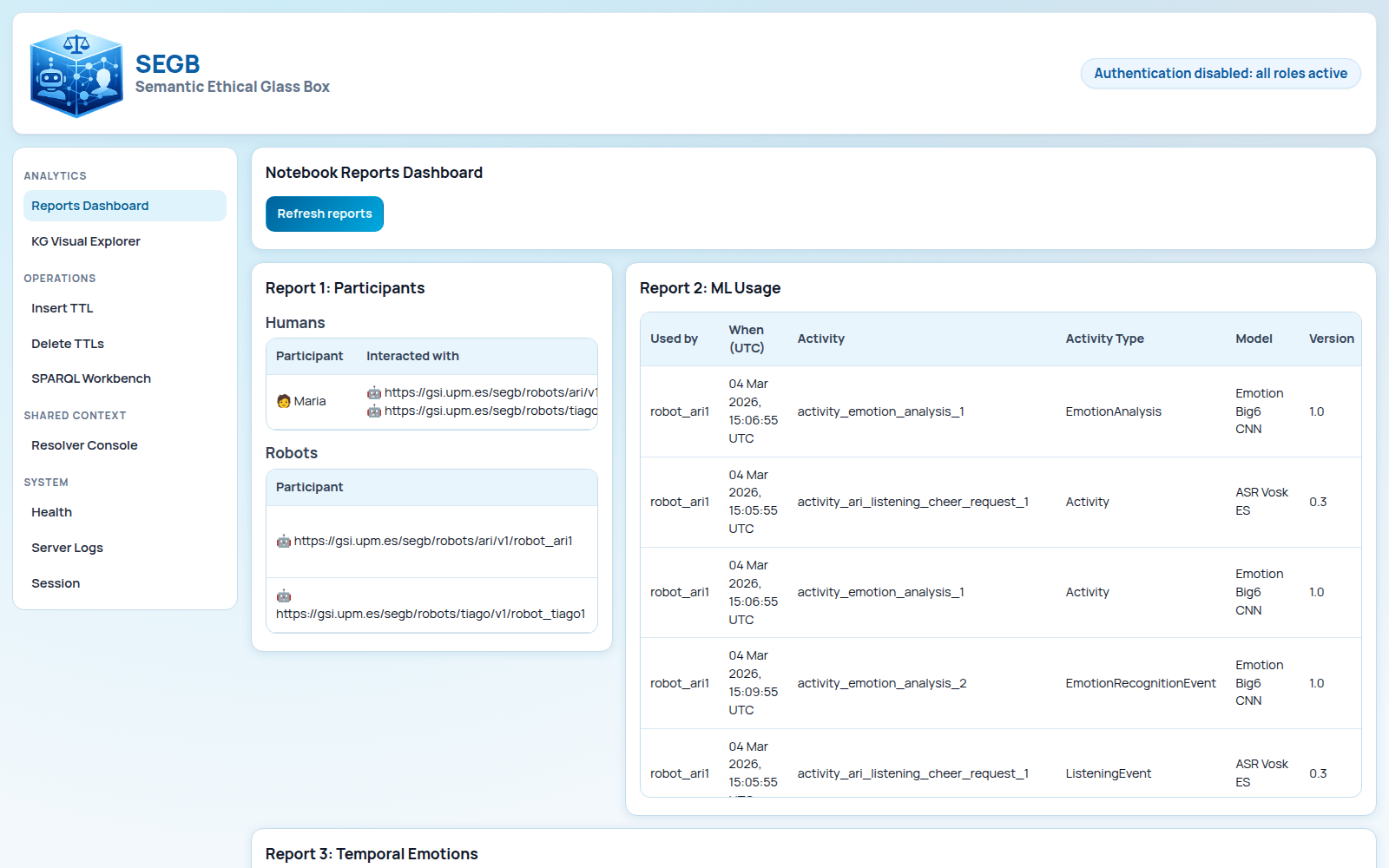
- Reports — participants, temporal emotions, conversation history, and more, derived from the KG.
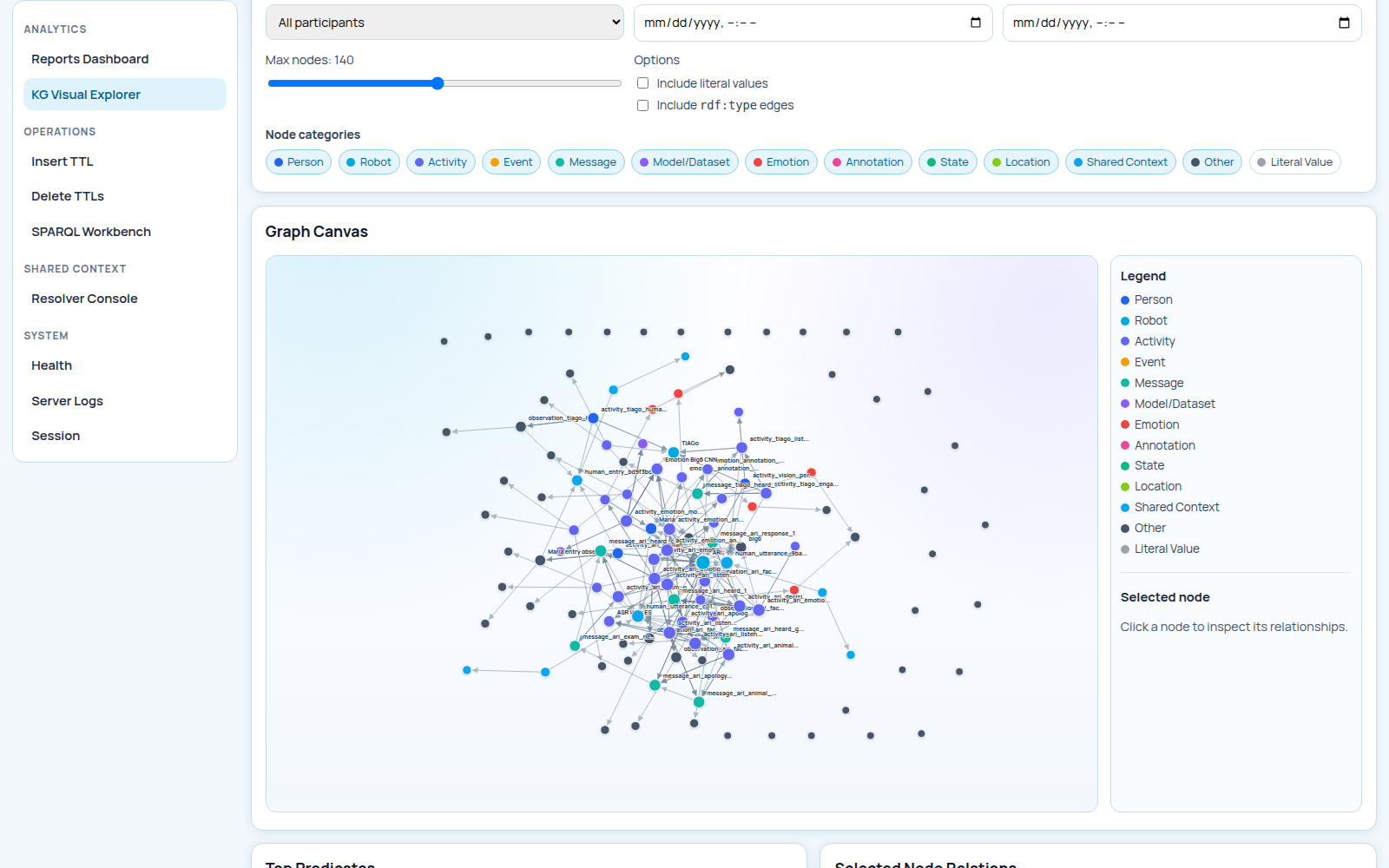
- Knowledge Graph — a connected graph linking humans, robots, activities, messages, model usage, and emotions, explorable visually and through SPARQL.
- Turtle exports — query results and graph exports in Turtle format for text-based inspection.
Example Knowledge Graph
Example Reports
Before You Start
Ensure the following are available on your machine:
- Docker Engine and Docker Compose v2
- Free host ports
5000,8080,8890, and1111 - Python
3.10+
If you do not yet have a local checkout, clone the repository and enter it:
git clone https://github.com/gsi-upm/semantic_ethical_glass_box.git
cd semantic_ethical_glass_box
All commands below assume you are running from the repository root.
Step 1 — Create the Environment File
Copy the example file:
cp .env.example .env
Then open .env and set at least the Virtuoso password:
VIRTUOSO_PASSWORD=change-this-password
This value is only read when the virtuoso_data Docker volume is created for the first time. Changing it later
does not update the password of an existing database.
To keep this first run simple, leave SECRET_KEY empty so that authentication remains disabled.
Step 2 — Start the Stack
Pull and start the published images from GHCR:
docker compose -f docker-compose.yaml pull
docker compose -f docker-compose.yaml up -d
Step 3 — Wait for the Backend to Become Ready
Poll the health endpoints until both return true:
curl -s http://localhost:5000/healthz/live
curl -s http://localhost:5000/healthz/ready
Expected responses:
{"live": true}
{"ready": true, "virtuoso": true}
If ready stays false, stop here and consult Centralized Deployment
before continuing.
Step 4 — Create a Python Environment for the Demo Loader
The demo script ships with the repository. Create a minimal virtual environment for it:
python3 -m venv .segb_env
./.segb_env/bin/python -m pip install -U pip
./.segb_env/bin/python -m pip install -e packages/semantic_log_generator
./.segb_env/bin/python -m pip install pydantic
pydantic is required because some simulation flows validate backend JSON responses with typed contracts. It is
not part of the SEGB toolkit itself.
Step 5 — Load the UC-02 Demo Dataset
The script clears the configured graph before inserting new data. Treat it as a resettable demo loader, not an additive import.
Without authentication (recommended for a first run):
./.segb_env/bin/python -m examples.simulations.run_use_case_02_report_ready_dataset \
  --publish-url http://localhost:5000 \
  --no-print-ttl
With authentication enabled:
./.segb_env/bin/python -m examples.simulations.run_use_case_02_report_ready_dataset \
  --publish-url http://localhost:5000 \
  --token "<admin_jwt>" \
  --no-print-ttl
If you still need a token, follow Authentication and JWT first and
return here once you have an admin token.
Step 6 — Open the Web UI
Navigate to the following pages in your browser:
| Page | URL |
|---|---|
| Reports | http://localhost:8080/reports |
| Knowledge Graph | http://localhost:8080/kg-graph |
| Query Workbench | http://localhost:8080/query |
If authentication is enabled, open http://localhost:8080/session first and paste a token with the admin or
auditor role.
Step 7 — Verify the Results
Reports and graph
On /reports, you should see populated sections: participants, conversation history, model usage, emotions, and
robot state. On /kg-graph, you should see connected nodes rather than an empty canvas.
Consult Explore the Web UI for a detailed walkthrough of each page.
SPARQL query
On /query, run the following read-only query to inspect the message timeline produced by UC-02:
PREFIX segb: <http://www.gsi.upm.es/ontologies/segb/ns#>
PREFIX schema: <http://schema.org/>
PREFIX prov: <http://www.w3.org/ns/prov#>
PREFIX oro: <http://kb.openrobots.org#>
PREFIX foaf: <http://xmlns.com/foaf/0.1/>
PREFIX rdfs: <http://www.w3.org/2000/01/rdf-schema#>

SELECT ?t ?robotName ?senderName ?text
WHERE {
  ?message a schema:Message ;
           schema:text ?text ;
           prov:wasGeneratedBy ?activity .

  ?activity a segb:LoggedActivity ;
            segb:wasPerformedBy ?robot .

  ?robot a oro:Robot .
  OPTIONAL { ?activity prov:startedAtTime ?t }
  OPTIONAL { ?robot rdfs:label ?robotLabel }
  BIND(COALESCE(?robotLabel, REPLACE(STR(?robot), "^.*[/#]", "")) AS ?robotName)

  OPTIONAL { ?message schema:sender ?sender }
  OPTIONAL { ?sender foaf:firstName ?senderFirstName }
  OPTIONAL { ?sender rdfs:label ?senderLabel }
  BIND(COALESCE(?senderFirstName, ?senderLabel, REPLACE(STR(?sender), "^.*[/#]", "")) AS ?senderName)
}
ORDER BY ?t ?robotName
LIMIT 20
The page shows results in two ways: a SELECT Result Table for quick inspection and a Raw Turtle Result card with the same output serialized as Turtle. A typical Turtle result looks like this:
@prefix ns: <http://example.org/> .
@prefix xsd: <http://www.w3.org/2001/XMLSchema#> .

[] a ns:Result ;
    ns:robotName "robot_ari1" ;
    ns:senderName "Maria"@en ;
    ns:t "2026-03-25T12:24:49.574054+00:00"^^xsd:dateTime ;
    ns:text "ARI, can you show me some news to cheer me up?"@en .

[] a ns:Result ;
    ns:robotName "robot_ari1" ;
    ns:senderName "robot_ari1" ;
    ns:t "2026-03-25T12:24:59.574054+00:00"^^xsd:dateTime ;
    ns:text "Here is one headline: many students are anxious because an important exam is coming soon."@en .

[] a ns:Result ;
    ns:robotName "robot_ari1" ;
    ns:senderName "robot_ari1" ;
    ns:t "2026-03-25T12:26:49.574054+00:00"^^xsd:dateTime ;
    ns:text "I am sorry, Maria. That exam news was not a good choice right now."@en .
Timestamps and blank-node identifiers will differ on your machine, but the result set should be non-empty and should reflect the message timeline from the demo dataset.
Turtle export via API
Without authentication:
curl -s http://localhost:5000/events | head -n 20
With authentication:
curl -s http://localhost:5000/events \
  -H "Authorization: Bearer <auditor_or_admin_jwt>" | head -n 20
If the export is non-empty and the UI pages are populated, you have completed the full SEGB loop.
Troubleshooting
1. ready: false on /healthz/ready
The backend cannot reach Virtuoso. Check the logs:
docker compose -f docker-compose.yaml logs -f amor-segb amor-segb-virtuoso
2. 401 or 403 while loading the demo dataset.
Authentication is enabled but the script is missing a valid admin token. See
Authentication and JWT.
3. /reports is empty.
Re-run the dataset loader from Step 5 and refresh the page.
4. Connection refused. The compose stack may have stopped. Check its status:
docker compose -f docker-compose.yaml ps
Next Steps
Now that you have a working stack:
- Read Core Concepts and Roles to understand the SEGB data model.
- Follow Publish Your First Log to ingest your own data.
- Follow Explore the Web UI for a guided tour of the interface.