Shared Context Workflow
This guide explains how SEGB handles one of its most useful ideas: two different observations may describe the same real-world event. You will first see a clean automatic match, then an ambiguous case, and finally the manual review flow that resolves that ambiguity.
Why Shared Context Exists
Imagine two robots in the same room. Robot A hears a sentence and robot B hears almost the same sentence a moment later. If you store those as unrelated events, later analysis becomes confusing. Shared context gives both observations a common reference when the system believes they point to the same event. The same idea also helps with multi-camera emotion analysis, gesture recognition, or any situation where several components may be observing one shared event.
Before You Start
You need:
- Quickstart completed
- If auth is enabled:
- an
admintoken created with Authentication and JWT - that token stored through
http://localhost:8080/session
- an
Step 1: Open The Shared-Context Page
Open http://localhost:8080/shared-context. This is the main UI for the workflow. It shows summary counters, the
pending review queue, and the decision area where ambiguous cases are accepted or rejected.
Step 2: Run The Automatic Match Example
This example uses UC-03 demo dataset. It sends two very similar observations close in time.
If auth is disabled:
./.segb_env/bin/python -m examples.simulations.run_use_case_03_shared_context_auto_match \
  --publish-url http://localhost:5000 \
  --no-print-ttl
If auth is enabled:
./.segb_env/bin/python -m examples.simulations.run_use_case_03_shared_context_auto_match \
  --publish-url http://localhost:5000 \
  --token "<admin_jwt>" \
  --no-print-ttl
An automatic match means the resolver is confident enough to say: "these two observations refer to the same real-world event, so I can reuse one shared-context URI without asking a human reviewer." In UC-03 that confidence comes from a clean combination of evidence:
- same
event_kind - same human subject
- same modality
- very similar text
- very small time gap
So the expected flow is:
- the first observation usually returns
createdbecause there is no previous context yet - the second observation returns
matched - both observations point to the same
shared_context_uri
That is why the UI should still show Pending reviews = 0: there is nothing uncertain to review. This is not just
"similar observations exist"; it is "the resolver is confident enough to merge them automatically."
Step 3: Run The Ambiguous Example
Now run UC-04 with no decision so you can review the case manually in the UI:
If auth is disabled:
./.segb_env/bin/python -m examples.simulations.run_use_case_04_shared_context_ambiguous_review \
  --publish-url http://localhost:5000 \
  --decision none \
  --no-print-ttl
If auth is enabled:
./.segb_env/bin/python -m examples.simulations.run_use_case_04_shared_context_ambiguous_review \
  --publish-url http://localhost:5000 \
  --token "<admin_jwt>" \
  --decision none \
  --no-print-ttl
An ambiguous match means the resolver sees a plausible candidate match, but not enough evidence to merge automatically.
This is important: ambiguous does not mean "unrelated." It means "possibly the same event, but confidence is not high
enough to decide safely without review."
In UC-04 the ambiguity is created on purpose. The observations are still close in time and similar in text, so the
resolver suspects a connection. But one of the strongest alignment signals is weakened or missing, so the evidence is no
longer clean enough for an automatic matched result. In the example, the second observation is intentionally sent with
incomplete subject alignment, which makes the candidate believable but not definitive.
The practical interpretation is:
- the first observation creates an active shared context
- the second observation is similar enough to be considered as a candidate for that context
- instead of returning
matched, the resolver returnsambiguous - the system opens a pending review case so a human can accept or reject the merge
If the two observations were clearly different, you would normally see created, not ambiguous. Ambiguous sits in
the middle between those two outcomes: stronger than "no relation", weaker than "safe automatic merge."
After it finishes, Pending reviews should increase, a case should appear in the queue, and candidate targets should
be available in the decision area.
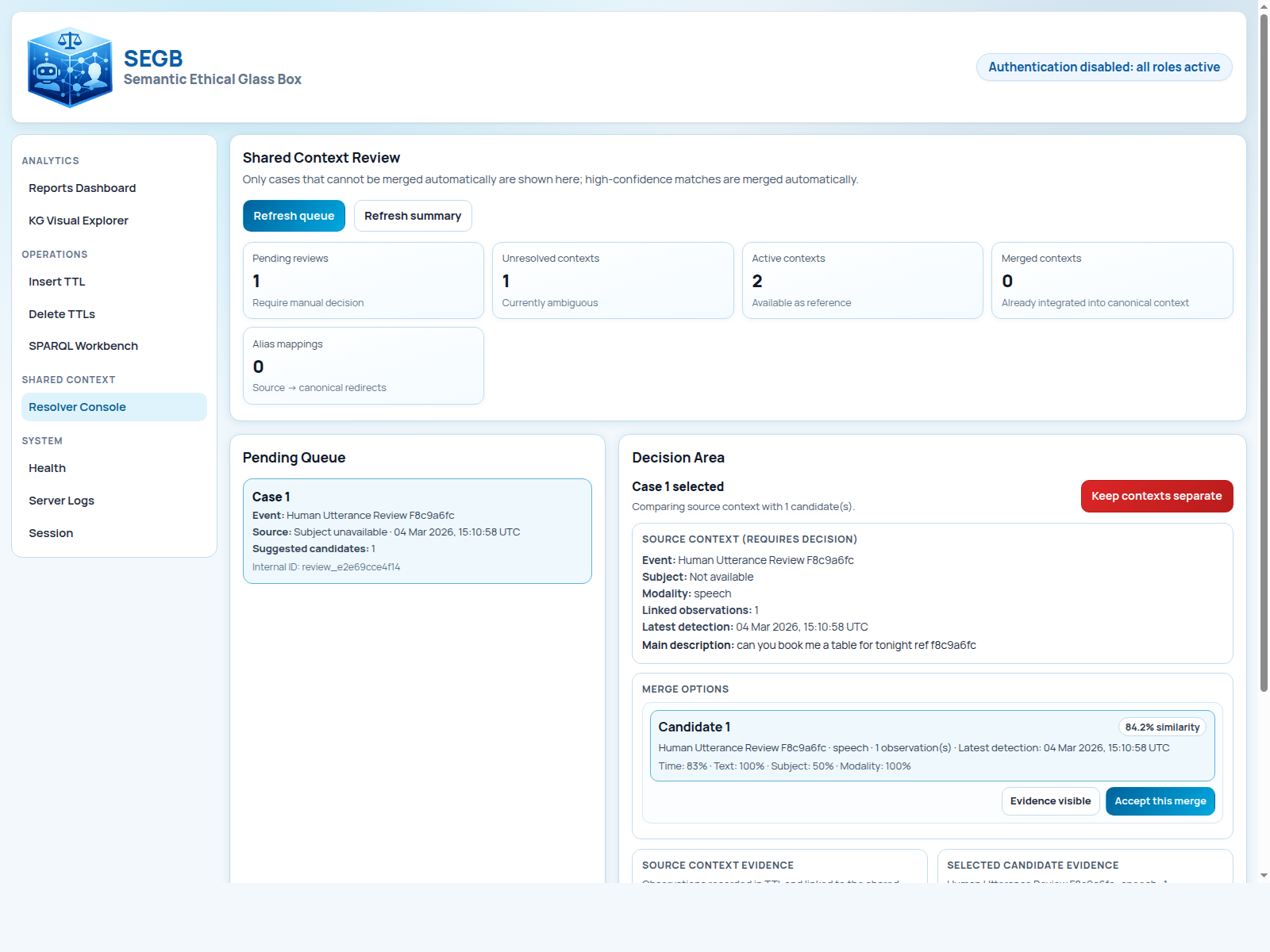
At that point, stay on the same page and review the case manually. In the decision area you can accept the merge or keep the contexts separate. After you make a decision, refresh the summary and queue. The pending count should decrease, accepted merges should update the relevant counters, and the case should disappear from the queue.
Step 4: Check The Backend Endpoints Behind The UI
The UI is the easiest place to work, but it helps to know the backend pieces underneath: POST /shared-context/resolve,
POST /shared-context/reconcile, GET /shared-context/stats, GET /shared-context/review/pending,
POST /shared-context/review/{case_id}/accept, and POST /shared-context/review/{case_id}/reject.
Useful raw checks:
curl -s http://localhost:5000/shared-context/stats
curl -s http://localhost:5000/shared-context/review/pending
If auth is enabled, add the bearer token:
curl -s http://localhost:5000/shared-context/stats \
  -H "Authorization: Bearer <admin_or_auditor_jwt>"

curl -s http://localhost:5000/shared-context/review/pending \
  -H "Authorization: Bearer <admin_jwt>"
What Success Looks Like
You have completed the workflow correctly when UC-03 reports a matched second observation, UC-04 creates a pending ambiguous case, the UI lets you review that case, and the counters update after your decision.
Common Problems
- everything is always
created: the observations are too different in time, subject, modality, or text to be matched. /shared-contextreturns403: your token is missing theadminrole.- the queue does not refresh after a decision: refresh the page and then inspect backend logs if needed.
Next Steps
If you want the compact lookup for all use cases, inspect the simulation entry points under
examples/simulations. If you want the exact permissions behind the UI and endpoints used here, read
API and Roles. If you want to see how SEGB fit into a fuller robot pipeline
rather than a small demo script, continue with ROS4HRI Integration, which shows a complete
integration in a more realistic runtime environment.